Court Bundles Ready For The Hearing
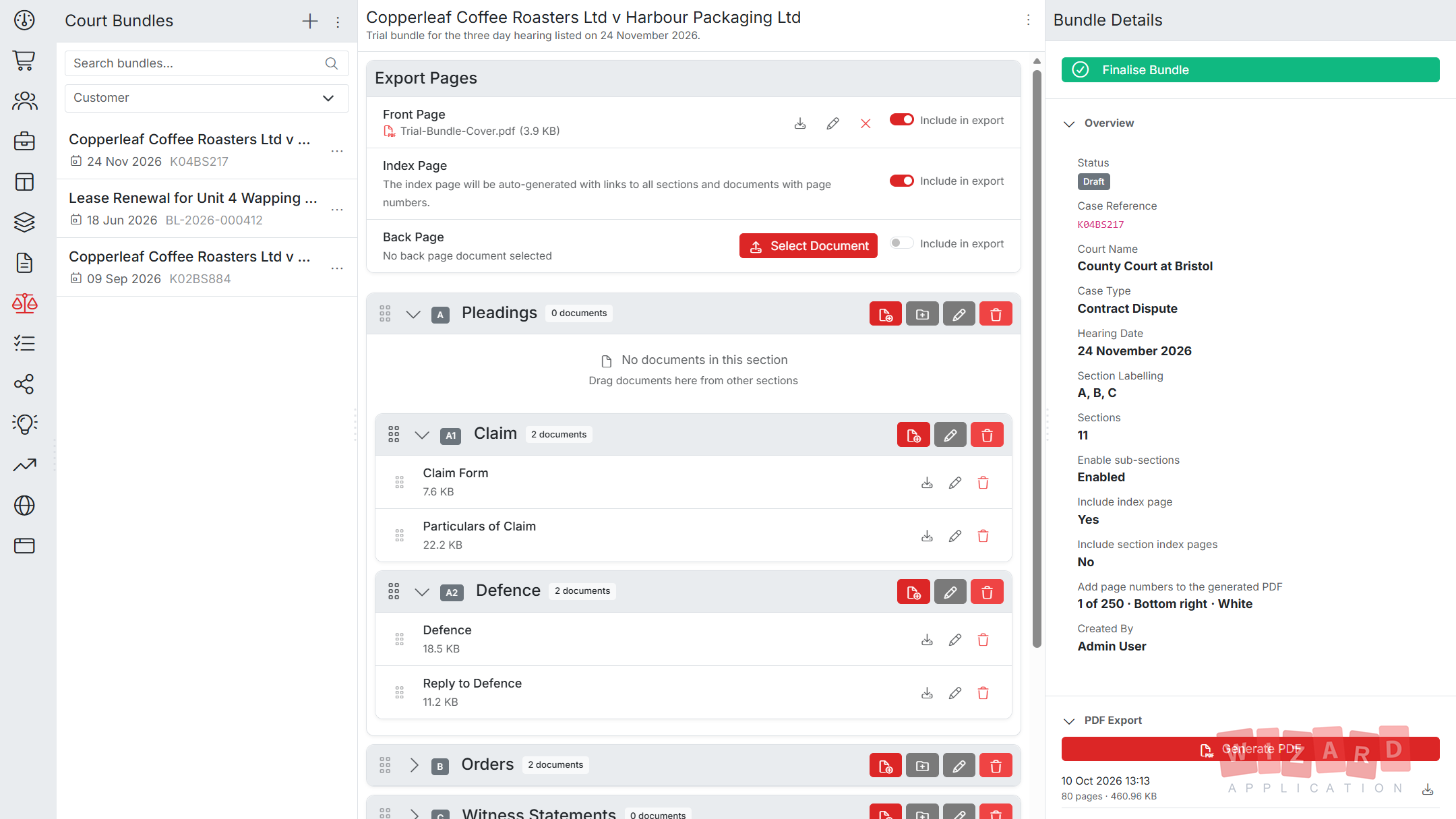
Build a paginated court bundle from the documents you already store in Wizard Application. Organise evidence into sections, reorder by drag and drop, then generate one merged PDF with a front page, an index and page numbers on every sheet.
Representing yourself in court? Build your bundle on the free plan. See how
Representing yourself in court
Courts expect a tidy bundle with an index and numbered pages, whether or not you have a lawyer. Wizard Application gives you the same tool law firms use. Upload your documents, put them in order and download one PDF to send to the court and the other side.
- Free on the Starter plan with one bundle included
- PDFs, Word documents, spreadsheets and photos all go in
- Sections, an index and page numbers are added for you
- Need another bundle? Buy one from your wallet without changing plan
- 1Upload your documents
- 2Put them in order
- 3Download one indexed PDF
Wizard Application helps you prepare your bundle but does not give legal advice. Always check your court's rules and any directions you have been given.
Everything You Need To Build A Court Bundle
From case details to the finished PDF, every stage of bundle preparation lives in one place with your documents.
Section Organisation
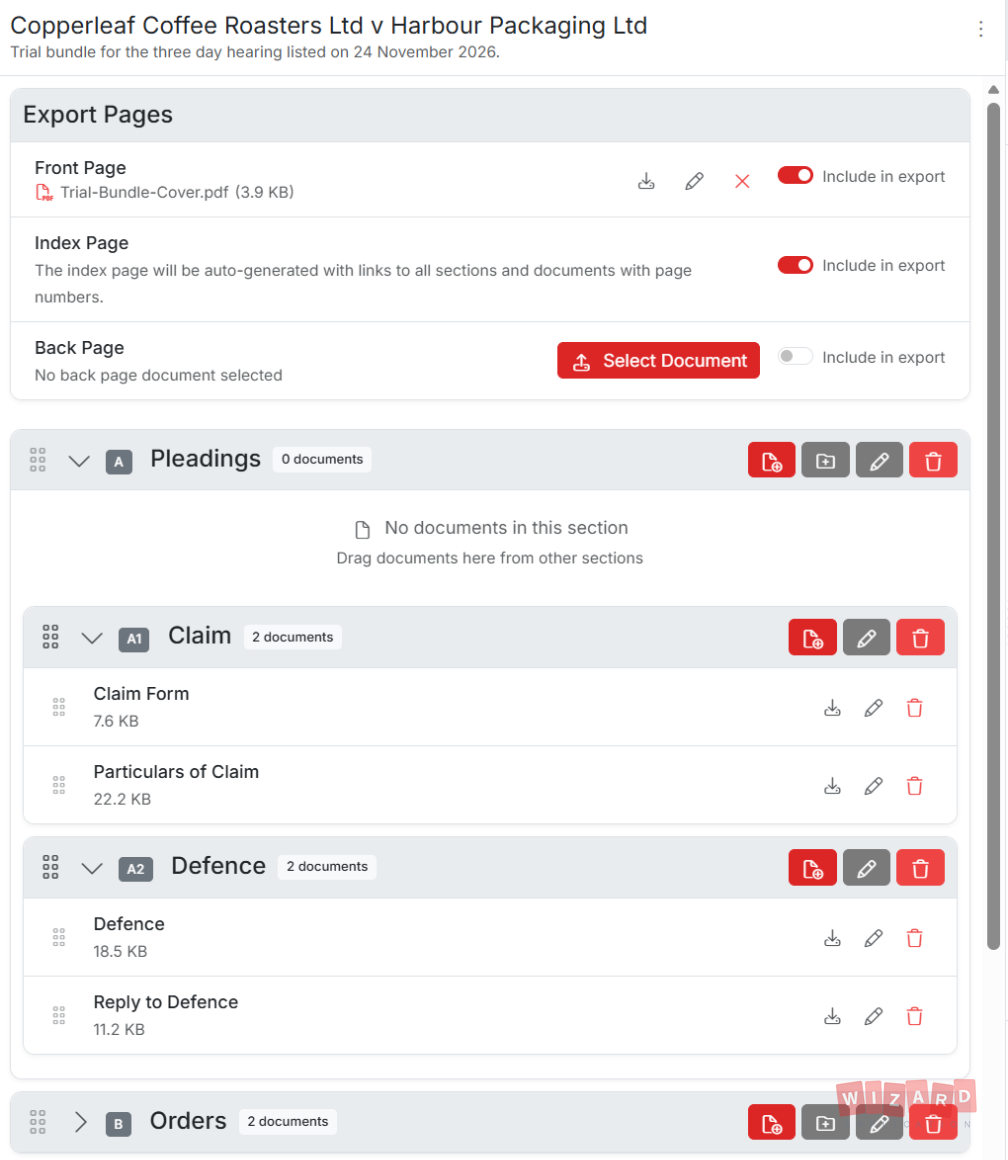
Group documents into sections such as Pleadings, Witness Statements and Correspondence. Labels are assigned automatically from the section order, so nothing needs renumbering by hand.
- Letters, numbers or Roman numerals
- Sub-sections one level deep
- Labels regenerate on reorder
- Optional per-section index pages
Drag And Drop Assembly
Reorder sections, reorder documents and move an exhibit between sections by dragging it. The bundle relabels itself as you go.
- Reorder sections and documents
- Move items between sections
- Reparent sub-sections
- Custom title per document
Documents From Your Library
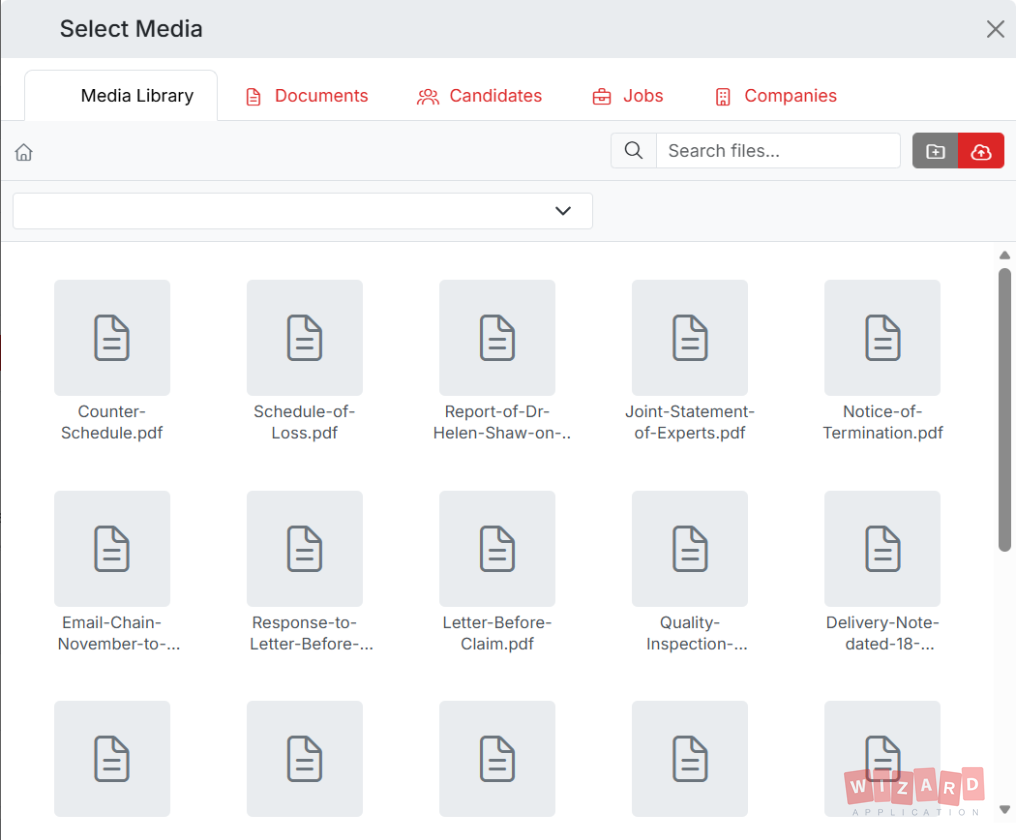
Pull files straight from your Media Library. Word files and images are converted so everything merges into one PDF.
- No re-uploading
- Word and image conversion
- Page reference per exhibit
- Private internal notes
Sections That Number Themselves
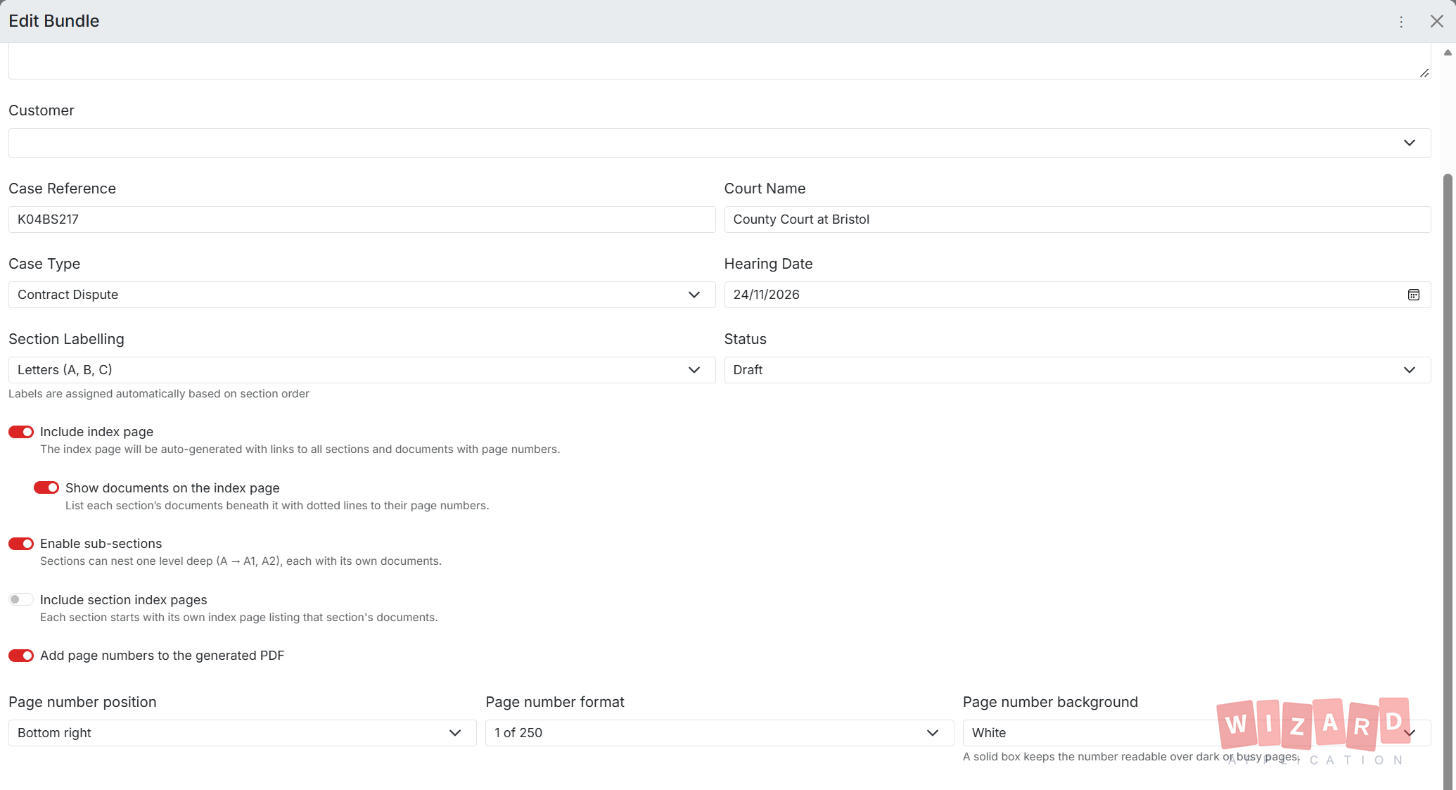
Choose how sections are labelled once and the bundle keeps itself consistent. Move a section and every label below it updates, including its sub-sections.
-
Four Labelling Formats Label sections A B C, 1 2 3, i ii iii or I II III.
-
Nested Sub-Sections A becomes A1 and A2, each holding its own documents.
-
Case Details On Every Bundle Case reference, court name, case type, hearing date and the client it belongs to.
One Merged PDF Ready To File
Generate the bundle in the background and download a single paginated PDF. You get a notification when it is ready, along with the page count and file size.
-
Front And Back Pages Choose a cover document and toggle it in or out of the export.
-
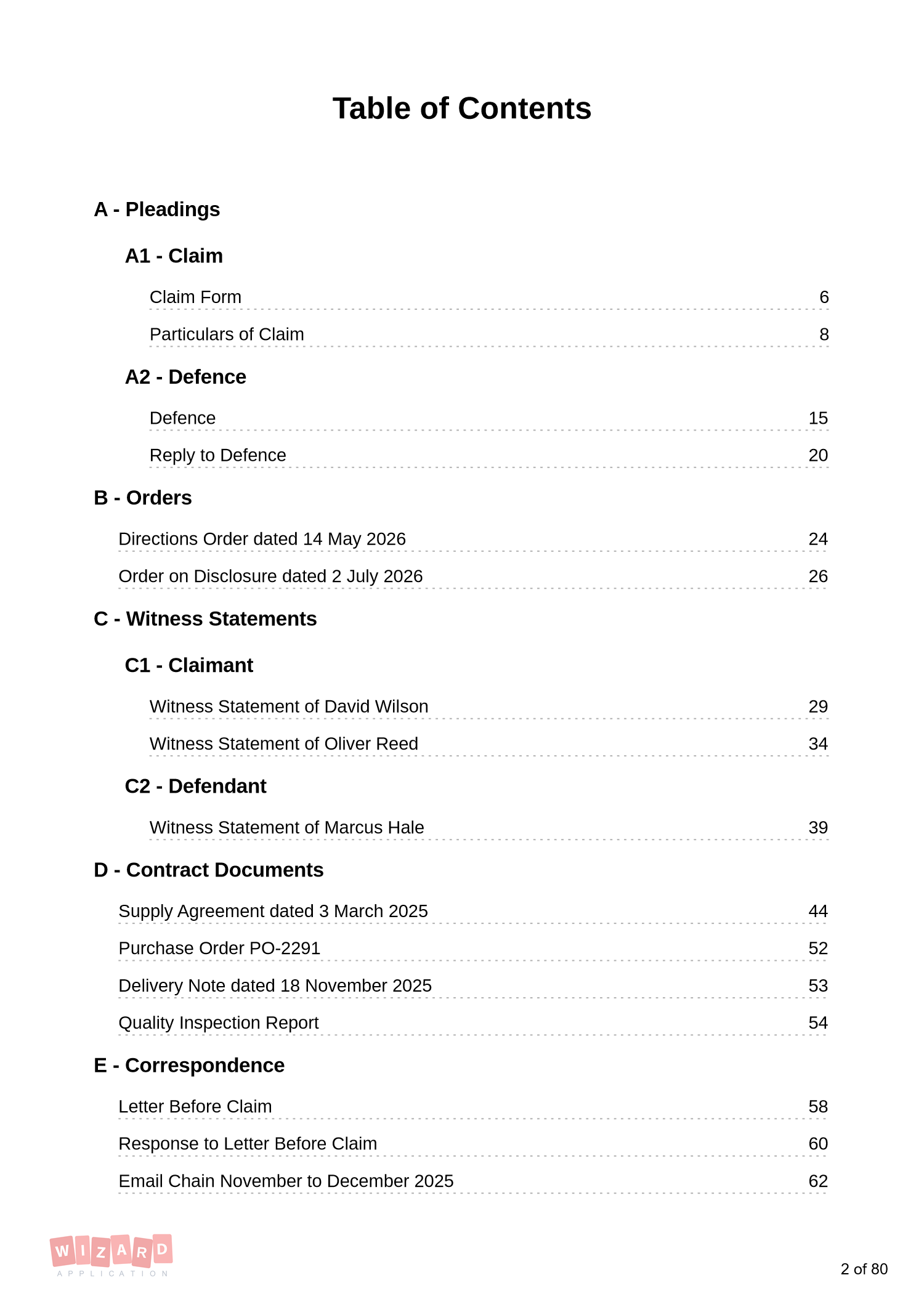
Automatic Index An index page listing every section and document with its page number.
-
Page Numbering Six stamp positions and three formats, with an optional highlight box so the number stays readable.
Draft To Filed With A Full Audit Trail
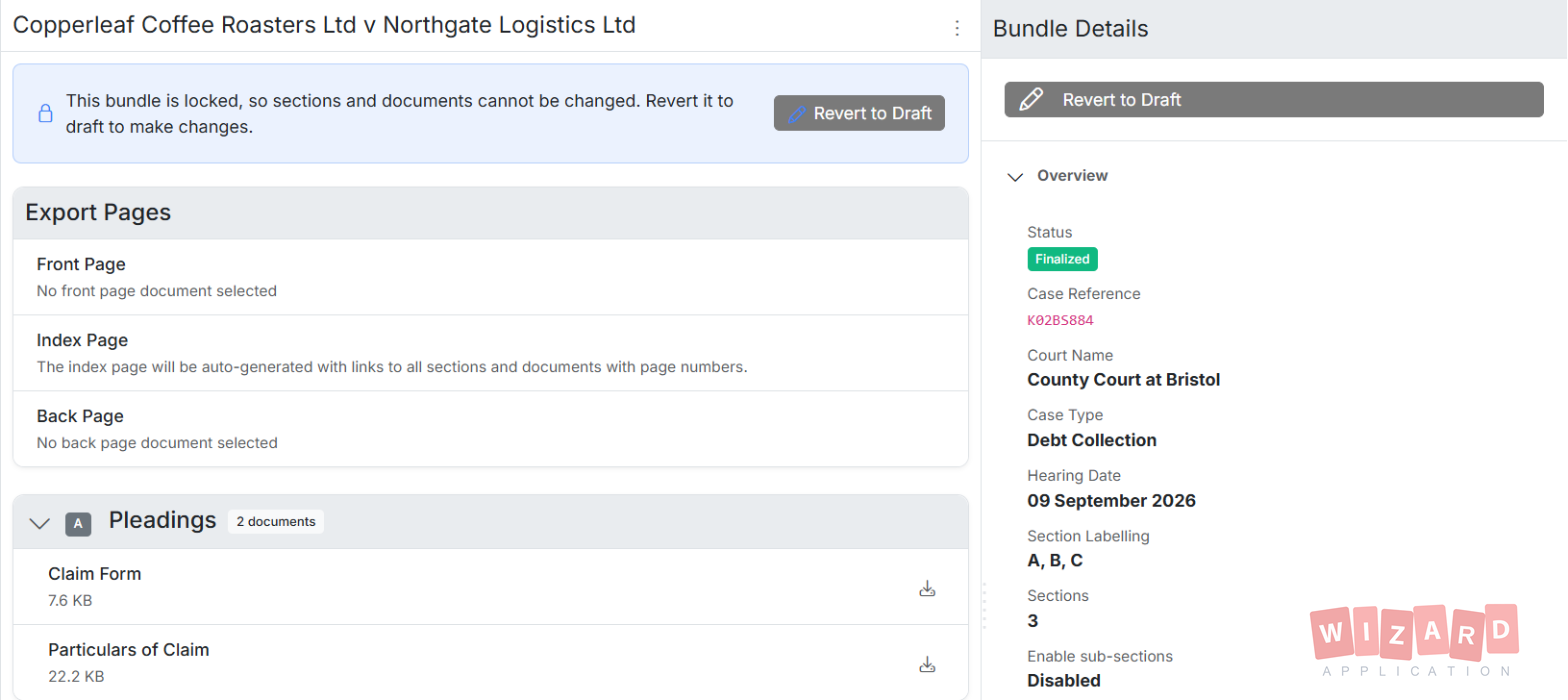
A bundle stays editable while it is a draft. Finalise it to lock the contents, archive it once the hearing is done and revert to draft if something changes.
-
Locked When Finalised Finalised bundles become read only so the filed version cannot drift.
-
Duplicate A Bundle Reuse a proven structure for the next matter instead of rebuilding it.
-
Per Bundle Permissions Decide which colleagues can open each bundle.
-
Time Tracking Record preparation time against a bundle and bill it through Invoicing.
Everything You Need
One subscription. One login. Zero limitations. Replace your entire software stack with a platform built to scale with you.
How to use Court Bundles
Step by step guides from the Help Centre
Ready to get started?
Discover how Wizard Application can streamline your business. Start free today.
Frequently Asked Questions
Court Bundles is included in every Wizard Application plan. Starter includes 1 bundle, Standard 5 and Professional 10. If you need one more, you can buy a single extra bundle from your wallet without changing plan.
Yes. Anyone can sign up on the free Starter plan, which includes one court bundle. Sign up as an individual, upload your documents and download the finished PDF. If you need another bundle later, you can buy one from your wallet.
PDFs go in as they are. Word documents, spreadsheets and images are converted to PDF during compilation, so the finished bundle is one continuous file.
Every page of the merged bundle is stamped after compilation. Pick the position and format, and add a background box if the number would sit over a dark or busy page.
Yes. The index page is rebuilt from the current sections and documents each time you generate the PDF and lists the page number where each item starts. It is a printed index rather than a hyperlinked one, so it works in paper bundles.
Finalised bundles are read only to protect what was filed. Revert to draft to make changes, then finalise again.
Duplicate an existing bundle to copy its sections, then swap in the documents for the new matter.